
Keyboard shortcuts
Tools and brush
Section titled “Tools and brush”| Key | Does |
|---|---|
| B | Brush |
| E | Eraser |
| G | Fill |
| M | Marquee |
| X | When you paint on a mask: swap the value you paint (white becomes black) |
Layers, channels and camera
Section titled “Layers, channels and camera”| Key | Does |
|---|---|
| Ctrl+C | Copy the selected layer |
| Ctrl+V | Paste the layer |
| C | Next channel view in the viewport |
| Shift+C | Previous channel view |
| F | Frame the model |
Files and undo
Section titled “Files and undo”| Key | Does |
|---|---|
| Ctrl+N | New project |
| Ctrl+O | Open project |
| Ctrl+S | Save |
| Ctrl+Shift+S | Save as |
| Ctrl+Z | Undo |
| Ctrl+Shift+Z or Ctrl+Y | Redo |
| Ctrl+Q | Exit |
| Do this | To |
|---|---|
| Left drag | Use the current tool |
| Shift + left click | Straight line from the last point |
| Ctrl + right drag | Brush size: right is bigger, left is smaller |
| Ctrl + left drag | Left and right: opacity. Up and down: brush angle |
| Alt + left drag | Orbit |
| Alt + middle drag | Pan |
| Alt + right drag, or the wheel | Zoom |
| Shift + right drag | Turn the light |
| Alt + click a channel button | Paint that channel alone (again: all on) |
In 3D the camera orbits around the spot you last painted, so you can turn a detail you are working on without losing it. F puts the camera back on the whole model.
Change a shortcut
Section titled “Change a shortcut”Go to Edit > Settings… > Shortcuts.
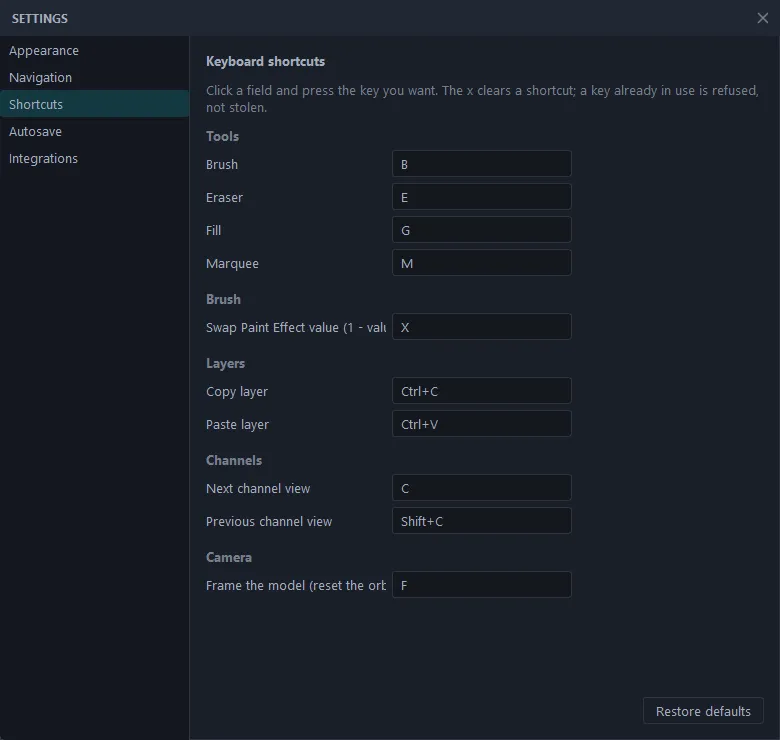
Click a field and press the key you want. The x clears it. If the key is already used by something else, Pixel Painter tells you and keeps the old one, so you never end up with two actions on one key. Restore defaults puts everything back.
Every key in the first two tables can be changed, including Ctrl+C and Ctrl+V. The Ctrl shortcuts for files and undo below them stay fixed.