
Baking mesh maps
Mesh maps are textures worked out from the shape of your model: where each pixel is, which way it faces, which parts sit in corners. You do not export them. Pixel Painter uses them behind the scenes for a few features:
| Map | Used for |
|---|---|
| Position | Tri-planar, Planar and Cylindrical projection; Light and Position mask effects |
| World Space Normal | Tri-planar, Planar and Cylindrical projection; the Light mask effect |
| Ambient Occlusion | The AO mask effect - dirt and shadow in the corners |
| Curvature | The Curvature mask effect - worn edges |
If you only paint by hand and use materials with UV projection, you can skip baking entirely.
How to bake
Section titled “How to bake”- Click Bake in the bar at the bottom of the window.
- In Mesh Map Bakers, tick the maps you want. Position and World Space Normal are ticked by default.
- Click Bake selected textures.
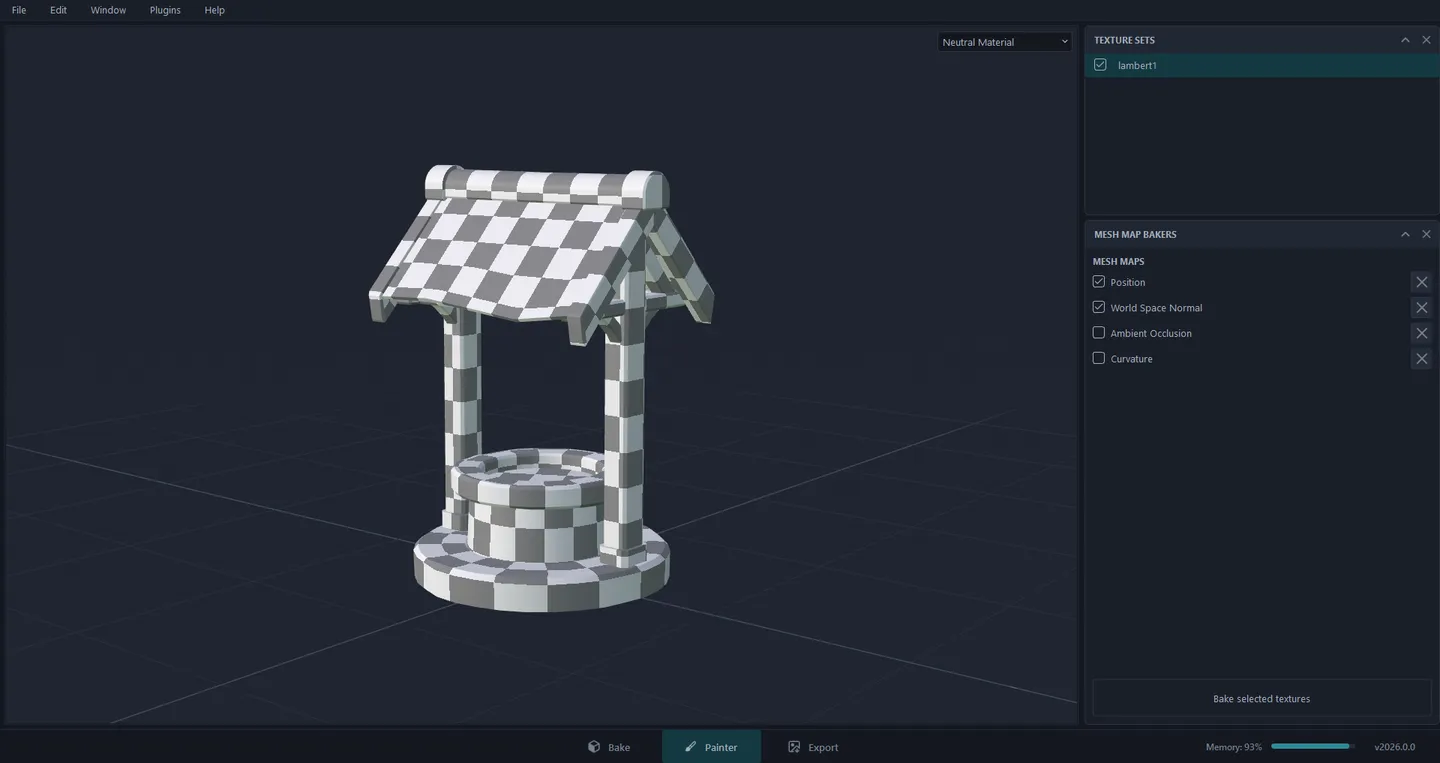
Small models bake in a moment. Ambient Occlusion takes the longest on a detailed mesh.
When a map is done, a small preview appears next to its name. The x next to it throws that map away.
Check the result
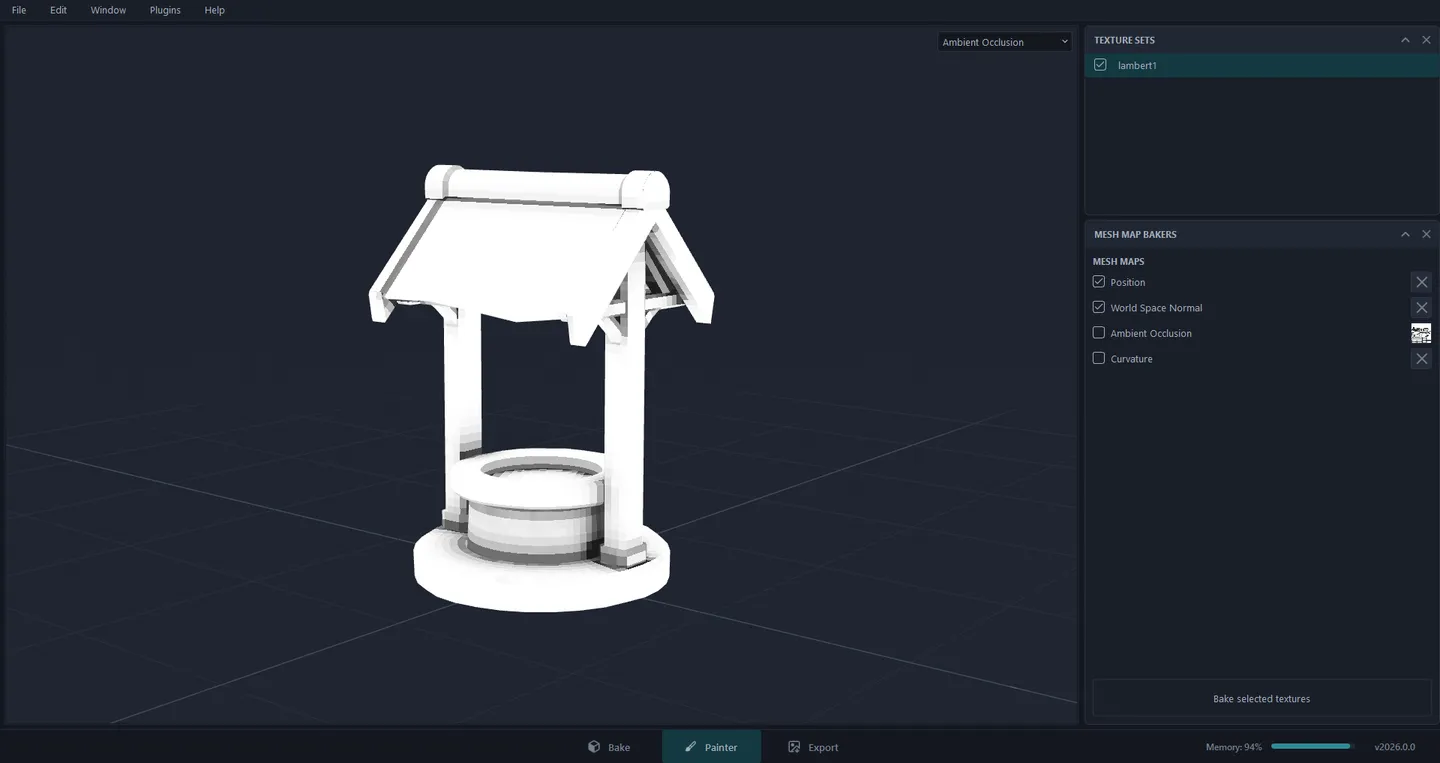
Section titled “Check the result”The drop-down in the top corner of the viewport switches between the neutral preview and each baked map. Here is Ambient Occlusion. The darker grey under the roof, inside the well ring and where the ring meets the base is where dirt would collect:
When you are happy, click Painter at the bottom to go back to painting.
When to bake again
Section titled “When to bake again”If you swap in a changed mesh from Edit > Project Configuration…, maps that no longer match its shape are thrown away. Bake them again before you use projection or the mask effects above.